Installation
- Close Unreal Editor. Building a source package requires a compatible C++ build toolchain.
- Copy the
ProceduralArchitectureGeneratorfolder into your project'sPluginsdirectory. - Open the
.uprojectin the matching Unreal Engine 5.4, 5.5, 5.6, 5.7 or 5.8. - Verify the plugin is enabled in Edit > Plugins.
Your first building
- In the Content Browser, find
/ProceduralArchitectureGenerator/Blueprints/BP_ProceduralBuildingand drag it into your level. - Select the actor and press Open Building Studio in Details. The actor's transform stays in Details; building settings are in Studio.
- Open Style Profiles and use the profile picker to choose a supplied profile from
/ProceduralArchitectureGenerator/ArchitectureKit. Modernist is a useful starting point for a simple building. - In Footprint, apply a rectangle template with enough bays for the intended building. Start with six bays in each direction rather than the initial single cell.
- In Building, set Floor Count to two. Leave Use Profile Dimensions enabled to use the kit's bay size and floor height.
- In Interior, leave Generate Connecting Stairways enabled. Keep the interior open for this first example.
- Press Generate. Use Check building to read any issues. If the stair layout cannot fit, enlarge the footprint and generate again.
- Save the level. To reuse the design on another building, use Save Layout in the toolbar.
You can also open /ProceduralArchitectureGenerator/Examples/L_ArchitectureGallery to inspect the supplied editable examples. Example layouts are in /ProceduralArchitectureGenerator/Examples/Layouts.
Building Studio
| Page | Use it for |
|---|---|
| Footprint | Building shape, exterior wall features, roof openings and manually placed stairs |
| Building | Style assignment, floors, bay dimensions, mesh selection and fitting |
| Interior | Interior partitions, doorways, connecting stairs, enclosures and railings |
| Design & Rules | Opening pattern, balcony composition, symmetry, entrances and placement rules |
| Roof | Profile roof settings or a roof specific to this building |
| Style Profiles | Selecting, creating, duplicating and saving styles; adding your own meshes |
| Output | Generated-piece and edit counts, advanced layout data and generation checks |
Press Generate after changing settings or drawing a layout. New variation selects another seed. Check building lists problems with the current design. Save Layout, Load Layout and both bake actions are in the toolbar beside Generate, along with Seed and Lock Seed. Building settings are grouped into visible sections. Studio edits support Unreal Undo.
A style profile, a module definition and a saved layout serve different purposes:
| Asset | What it stores |
|---|---|
| Architecture Style Profile | Shared dimensions, design and interior defaults, roof settings and module pools |
| Architecture Module Definition | A mesh's category, size, orientation, placement correction, materials and selection settings |
| Procedural Building Layout | A building's footprint, selected style, local settings, rooms and manual edits |
Profiles and module definitions are shared assets. Editing one can affect several buildings. Layouts reference these assets rather than duplicating the complete kit.
Footprints and exterior walls
A bay is one unit of the building grid. Bay Width, Bay Depth and Floor Height are measured in centimeters. The selected profile supplies these dimensions by default. Use Building > Copy Profile Dimensions to copy them into the actor and turn off inheritance before making a building-specific adjustment.
The default footprint starts with one occupied cell. Use the canvas to add or remove cells, or apply a Rectangle, L-Shape, U-Shape, Courtyard, T-Shape or Cross template. Drag the divider if you need more room for the canvas or tools. Keep the occupied area connected.
Polygon and spline shape sources are also available. Their outlines are converted to occupied bay cells; they do not cut modular walls along arbitrary diagonal or curved edges. The spline source uses the actor's closed FootprintSpline component.
Exterior features and wide doorways
- Choose a footprint with a suitable exposed edge.
- Choose Paint Edges, then select a feature from Wall features, such as Plain wall, Window, Doorway, Arch or Loggia / Arcade.
- Choose the feature width where available. Use 2 Bays for a wide doorway and a profile with a compatible doorway module.
- Click the exposed perimeter edge and press Generate. Each click places one feature; dragging does not repeat placement.
The selected edge determines placement and orientation. Yellow previews the selected span, purple shows mirrored copies, and red marks an invalid placement. Use Auto to return an authored feature to automatic selection. Required entrances are placed automatically when you have not authored an entrance edge. Check the result when changing a feature's span or the footprint around it.
Choose Place Left/Right Axis or Place Front/Back Axis to preview an axis across the grid. Click to set it and return to footprint editing. Choose Paint Edges again to place facade features. Mirroring remains active until you use Clear Mirror Axes; clear the axes when you want to place a single copy.
Doorway walls provide openings. Automatic generation does not add door leaves or window panes. Standalone corner assemblies are also excluded from automatic wall construction.
Design rules and variation
Building design is enabled by default. Its choices apply to related parts of the building: openings follow a pattern, arcades form bands, balconies include access and guards, matching windows receive consistent ornament, and columns form supported stacks.
In Design & Rules, choose the opening pattern and balcony composition, then adjust entrances, symmetry and module rules. Use Profile Rules inherits the selected profile's defaults. Disable it when you want local rule settings.
| Setting | Effect |
|---|---|
| Seed | Repeats the selection for the same inputs. Changing meshes, profiles or rules can change the result even with the same seed. |
| Lock Seed | Keeps ordinary regeneration on the selected seed. New variation chooses a new seed even while Lock Seed is enabled. |
| Detail Level | Chooses the building's mesh quality tier. A missing compatible tier can fall back to Standard. |
| Mesh Variant | Chooses a numbered mesh family for the building. A value of zero lets the generator resolve it. |
| Facade Symmetry | Balances corresponding exterior runs. Authored feature positions remain fixed. |
| Rule minimum/maximum | Controls requested counts. A minimum that cannot be placed is reported; strict requirements may prevent generation. |
| Best Effort Minimum | Allows an explicit rule's minimum to remain a goal when the footprint cannot accommodate it. |
For interior columns, use a Column rule in the Interior placement zone. The generator looks for supported positions within the occupied floor area, including suitable courtyard corners. Symmetry keeps corresponding columns paired. Leave enough room around stairs and partitions for the requested supports.
Disabling building design enables independent placement rules. Use that mode when you want to control individual categories rather than the coordinated facade arrangement.
Rooms and stairs
Interiors start open. Draw the partitions you need on each floor, or expand the optional automatic room controls to generate a starting layout. Stair connections and enclosures can be used with either approach.
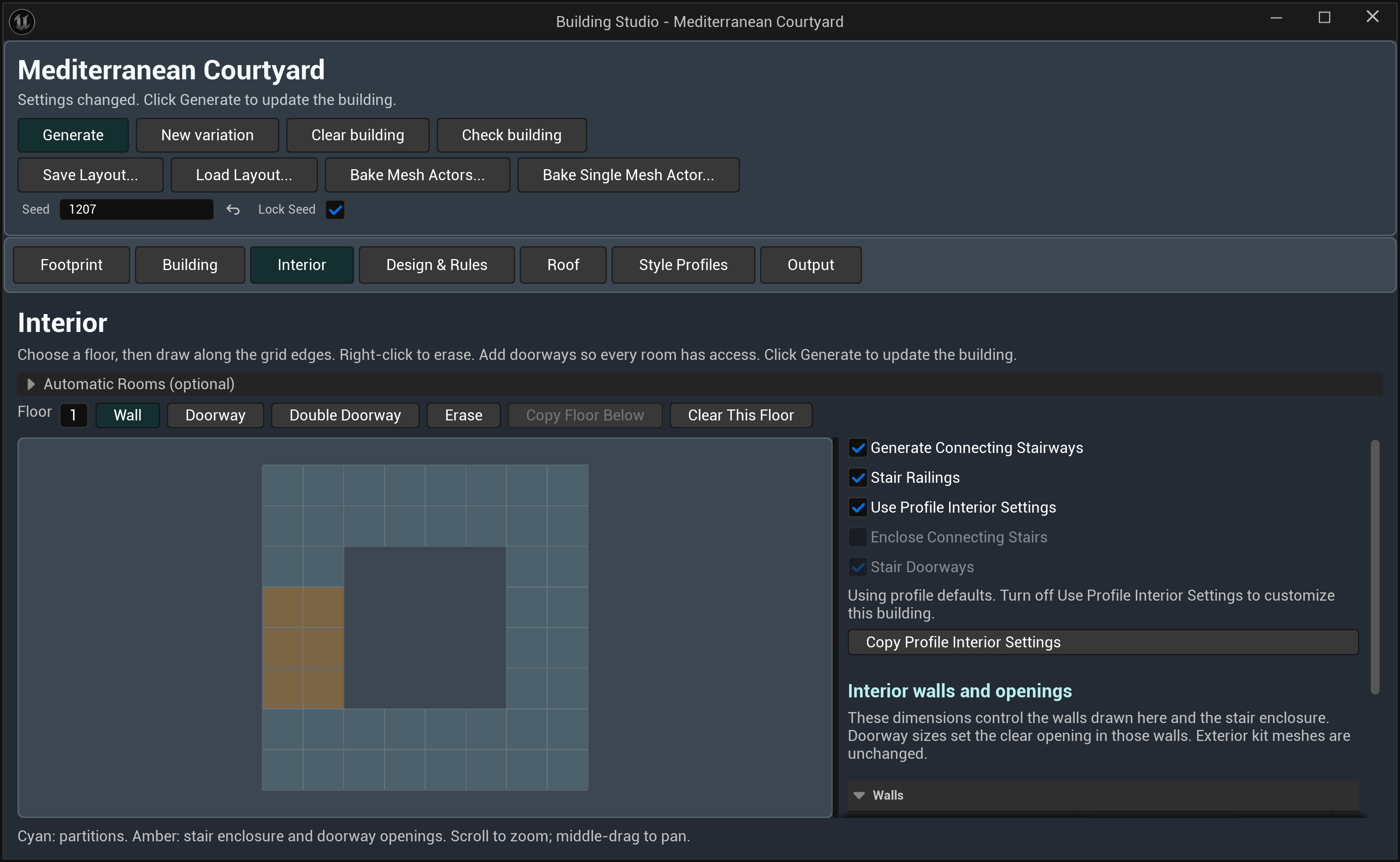
Draw interior walls and doorways
- Generate the footprint and floor count first.
- Open Interior and choose the floor you want to edit.
- Select Wall, Doorway or Double Doorway and draw on the internal edges between occupied floor cells. Drawing from Open Plan begins a manual layout.
- Use Erase to remove a partition. Clear This Floor clears that floor's drawn partitions while keeping stair enclosure settings.
- Press Generate, then inspect the rooms and access routes.
Copy Floor Below copies partitions from the floor immediately below the selected floor. Drawn partitions belong to their floor and are saved with layouts. If you temporarily reduce the footprint or floor count, walls in the removed area are kept. Restoring those cells or floors makes the walls available again.
Expand Automatic Rooms (optional) if you want a generated corridor and room arrangement. Choose Draw Walls to make that result editable before changing its partitions. Open Plan leaves the interior open and keeps drawn walls for later use.
Partitions follow the bay grid. Doorway brushes create openings without movable doors. Partitions cannot cross stair flights or obstruct their landings. An invalid or disconnected plan reports an issue and keeps the previous generated building.
The Interior walls and openings dimensions control drawn partitions and stair-enclosure walls. Doorway sizes set the clear opening in those walls; exterior kit meshes are unchanged.
Automatic connecting stairs
Generate Connecting Stairways defaults on. With two or more floors, the generator reserves stair flights, landings and upper-floor openings between adjacent levels. A footprint must have enough space for the route and access to the remaining floor area.
| Control | Use |
|---|---|
| Stair Railings | Include or omit flight handrails. Railings default on. Enclosure walls replace the relevant perimeter guards. |
| Use Profile Interior Settings | Inherit the shared room and enclosure settings. Turn it off to customize this building. |
| Copy Profile Interior Settings | Copy the current profile values into this building and turn off inheritance. Drawn walls are retained. |
| Enclose Connecting Stairs | Add full-height stairwell walls with access at each floor. |
| Stair Doorways | Use doorway openings at stairwell entrances. Requires enclosure. Door leaves are not generated. |
For enclosed stairs on one building, use Copy Profile Interior Settings, enable Enclose Connecting Stairs, optionally enable Stair Doorways, and press Generate. For open flights without handrails, leave enclosure off and disable Stair Railings.
Manually placed stairs
Choose Stairs in the Footprint tools. Click where the stairs start, then the cell they lead to. The tool exposes Doorway at the bottom, Enclose the stair flight, Enclose the upper landing and Doorway at the upper landing. The upper doorway requires its landing enclosure. Generate and check the result after editing the run.
Roofs
The roof is generated from the building footprint. Available forms are Flat, Gable, Hip, Shed, Mansard, Dome, Barrel Vault and East Asian Curved. Style profiles define which forms are allowed and supply the initial roof settings.
Use Profile Roof Settings is enabled by default. Use Copy Profile Roof Settings for a local copy you can change, or edit the shared profile when every building using it should receive the same defaults.
Roof controls include pitch, overhang, thickness, ridge direction, eave offset, UV scale and materials. Curved forms add height, curvature and tessellation controls. Increase tessellation when a dome or vault needs a smoother outline, considering the resulting mesh cost. Flat roofs can use the style's parapets; sloped roofs do not add parapets automatically.
The roof has separate material regions, including its underside and the gable fill above exterior walls. Use the relevant material setting when a wall-facing roof region needs a different finish. Check courtyard openings and irregular footprints after changing roof form. A roof choice outside the profile's allowed forms is reported by validation.
Style profiles
The supplied presets cover Classical / Greco-Roman, Romanesque, Gothic, Renaissance, Baroque, Neoclassical, Art Deco, Modernist, Brutalist, Mediterranean, Middle Eastern and East Asian architecture. Custom profiles can use your own settings and meshes.
Open Style Profiles and select a profile with the asset picker. The searchable editor contains its dimensions, architectural preset and rules, roof defaults and allowed forms, interior defaults, materials and module pools.
- New Profile creates an empty profile in your project.
- Save Profile writes the selected profile.
- Duplicate Profile creates a separate profile asset. Referenced meshes, materials and module definitions are still shared.
- Reset style rules restores the rules for the architectural preset after confirmation and supports Undo.
Use Duplicate Profile before adapting a supplied profile. If you also need independent calibration or materials on a module definition, duplicate that definition and replace its entry in your copied profile. Copying only the profile does not isolate module edits.
Double-click a module in a pool to open Module Setup. Save module changes there, save the profile, and regenerate the building. Switching profiles does not discard unsaved edits to the previous asset.
Importing and fitting your meshes
Each mesh in a custom kit needs a category, orientation and logical size so the generator knows where it fits. These settings are saved in a module definition. The source Static Mesh stays unchanged.
Add assets
For meshes already in the Content Browser, use Style Profiles > Set Up Project Meshes, or select Static Mesh assets and choose Set Up Building Modules from their context menu. For files on disk, use Import Mesh Files and complete Unreal's import dialog. The imported meshes enter the same Module Setup queue.
Work through the queue with Previous and Next. Remove from Queue removes an entry from the current setup list without deleting its asset.
Set orientation and size
- Choose the module's asset type. A doorway opening built into a full wall belongs to Doorway Wall; a standalone door leaf does not replace that wall.
- Set Mesh front to the source axis facing outward and Mesh top to the source's upward axis. They must be perpendicular. Their opposite directions determine back and bottom. Flip Front reverses the facing direction.
- Use Show Source Mesh, Front View, Back View and Top View to check the source and placed orientations. Frame Mesh brings it back into view.
- Set the kit's Bay Width, the module's bay span and Module Size. A wide wall needs the correct occupancy, such as Double Bay, rather than only a larger scale.
- Use Fit Scale and Anchor to fit the mesh to that logical size. Use Use Mesh Size when its measured size should become the starting dimensions.
- Enable Show Neighbor Bays and inspect adjoining pieces before making final corrections.
- Assign materials, press Save module or Save All Modules, then Create Style from These Modules to create a usable profile.
Choose orientation and logical dimensions before fine scale adjustments. Changing orientation or applying a fit recalculates placement scale. Use Mesh Size also resets placement offsets and uses the source measurements.
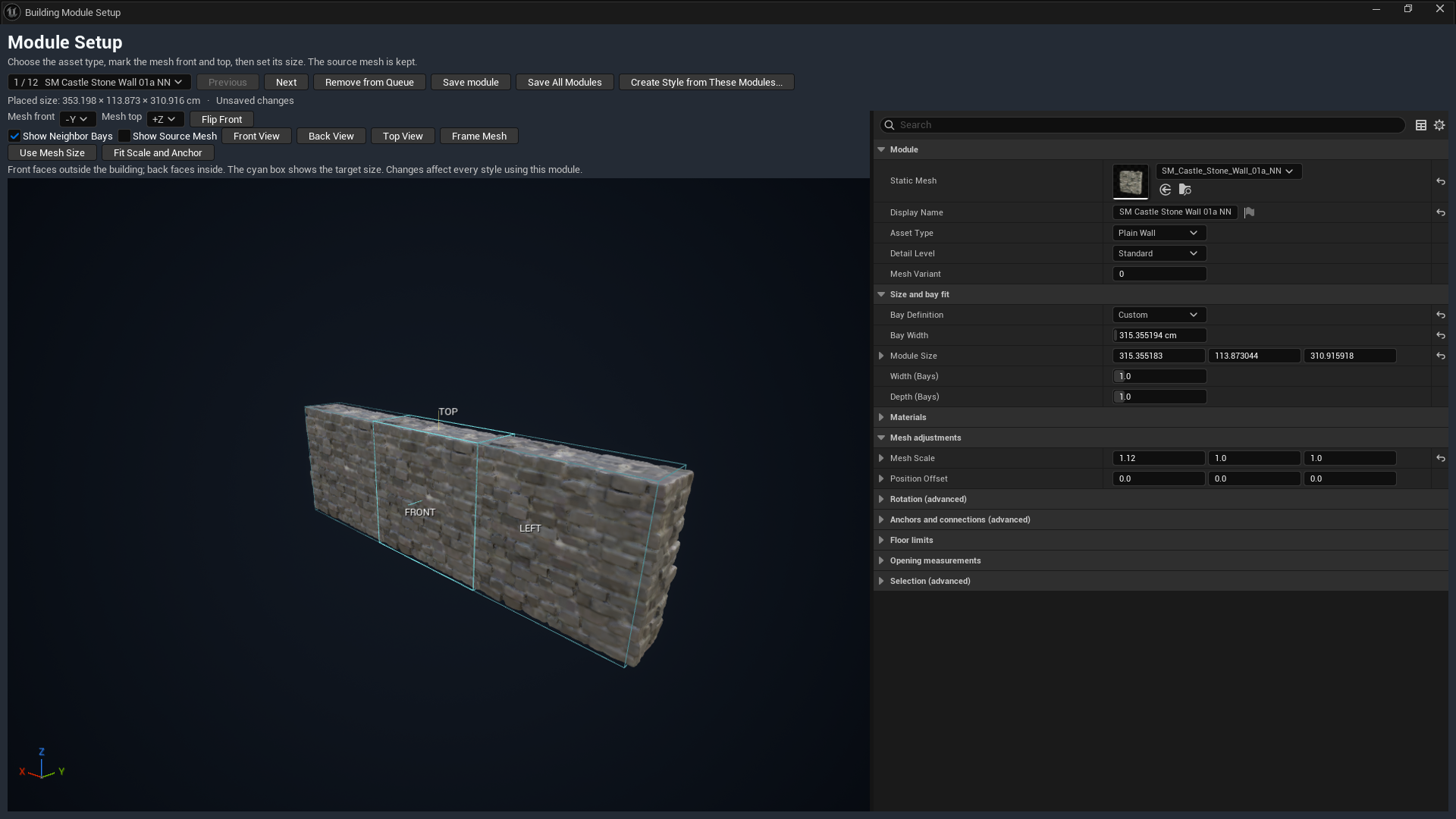
Correct a gap or overlap
Mesh Scale uses the original mesh's X, Y and Z axes. Position Offset moves it in placed module coordinates. Neither changes the logical number of bays occupied.
For example, if a source axis needs to be two percent wider, multiply its current scale by 1.02: 1.0 becomes 1.02, while 0.5 becomes 0.51. Adjust only the relevant axis, inspect the neighboring-bay preview, save the definition and regenerate a test building. Check both a straight run and a corner, and inspect floor edges against the wall depth.
A wall-width correction, wall-depth correction and floor-size correction solve different gaps. Make a small change to the responsible module, then inspect the actual building. Avoid stretching a doorway until its opening or trim becomes distorted. Reapplying Fit Scale and Anchor, Use Mesh Size, or a fitting preset can replace your manual scale correction.
Add Opening Outline records the size and position of an existing opening. It does not cut a hole in a solid source mesh or create a working door. Use source geometry that already contains the required opening.
Building-level fitting
Building > Mesh fitting provides seam, surface and column adjustments for the building. Use module calibration when the same asset-size problem recurs across buildings. Panel overlap can cover seams between suitable closed panels. Panels with openings are excluded so their jambs and reveals do not overlap.
Materials
The supplied kit uses 68 basic material instances sharing /ProceduralArchitectureGenerator/Materials/M_PAG_BasicSurface. The master exposes BaseColor, BaseColorTexture, TextureTiling, Roughness and Metallic. It uses Unreal's built-in white texture as its default; no texture assets or advanced material pack are bundled.
Duplicate a basic instance into your project before customizing it. Assign a texture to BaseColorTexture and set BaseColor to white if you want the texture's original colors. Adjust tiling and surface values as needed. For normal maps, packed maps or a different shading setup, supply your own material.
Assign a replacement through a module definition's Material Overrides. Entries correspond to mesh material slots; an empty entry inherits the mesh's material. These assignments appear in the calibration preview and apply wherever the shared definition is used. You can also edit an individual generated component's material for a building-specific change.
Saving and baking
Save the level to retain the placed editable building. Save edited profiles and module definitions separately when their assets have unsaved changes.
| Toolbar action | Result |
|---|---|
| Save Layout | Saves a reusable layout asset with the selected style, footprint, local settings, rooms and manual edits. |
| Load Layout | Always opens a layout picker and rebuilds the chosen design. Save the current design first if you need to keep it. |
| Bake Mesh Actors | Creates individual Static Mesh Actors in a named World Outliner folder. |
| Bake Single Mesh Actor | Creates a merged Static Mesh asset at the chosen Content Browser location and places an actor using it. |
A layout keeps references to its profile, module definitions and materials. Keep those assets available when moving the design to another project. Baking creates mesh output; use the original building actor or a saved layout for future procedural changes.
Generated component deletions, transforms, mesh replacements, copied additions and material changes are retained through regeneration and saved layouts. Clear building in the toolbar clears the generated hierarchy and its manual edit records. Save a layout before clearing if you need to preserve those edits.
After baking, inspect material slots, collision and navigation for your project. A merged mesh retains assigned materials and separate floor, roof and parapet regions where required. Baking does not provide gameplay doors, room furnishing or navigation setup.
Troubleshooting
| Symptom | Check and action |
|---|---|
| The Blueprint or profiles are missing | Enable the plugin and Show Plugin Content. Check the installation folder and matching engine package. |
| A control is disabled | Check its inheritance toggle. Use the matching Copy Profile action to start a local override from the current profile. Stair controls also require multiple floors and connecting stairs. |
| Generate keeps the previous building | Open Check building. Fix the reported footprint, missing module, required count or access issue, then generate again. |
| Stairs cannot fit | Increase usable floor area or change the footprint. Keep flights, landings and the route into the floor clear. |
| A room wall cannot be drawn | Draw an internal edge between occupied cells on the selected floor, away from reserved stair space. Convert automatic rooms with Draw Walls first. |
| A doorway is absent or stretched | Check its wall category, logical span, module pool, orientation and available boundary length. Use a compatible wide module for a wide entrance. |
| Gaps repeat between bays | Inspect the responsible module with Show Neighbor Bays. Correct its Mesh Scale or Position Offset, save and regenerate. |
| A scale correction disappears | Orientation, measurement and fitting actions recalculate scale. Complete those steps before applying the final correction. |
| Editing a style changes other buildings | Profiles and module definitions are shared. Use Duplicate Profile for a separate profile, and duplicate definitions when calibration also needs to be independent. |
| The roof choice reports a problem | Check Allowed Roof Types in the profile and whether the building inherits profile roof settings. |
| A saved layout looks different after kit edits | Layouts reference shared assets. Review the changed profile, module definitions and materials, as well as the seed. |
| The building differs from textured showcase images | Those images use external textures and environment assets. The download contains the basic material set. |
Limits
Version 1.0.0 supports bay-aligned modular construction. Polygon and spline footprints are rasterized; interior partitions remain on the grid. The tool does not generate furniture, arbitrary-angle room walls, functioning door leaves, window panes or gameplay interaction.
Roof forms have their own footprint and style constraints. Compound dome transitions, intersecting vault families, curved timber framing, districts and independent per-piece rerolls are outside this release.
Generation checks placement and access constraints, but each project still needs its own collision, navigation, performance and gameplay review. The design rules do not certify structural engineering.
Textured courtyard scenes, Brushify environments and the imported castle and wooden example kits are demonstration assets only and are not included in the plugin.
Support
If a problem remains after the checks above, use the EmbeddedTechno support page. Include the plugin version, Unreal Engine version, the steps that produce the problem and what you expected to happen. A screenshot of the relevant Studio page and the messages from Check building help identify the affected settings.
